Wednesday, January 27, 2021

Power Platform 2021 Release Wave 1 Plan

The Power Platform 2021 Release Wave 1 Plan has just been released!


You can go to the plan in the documentation (here) or download the detailed PDF (here).

I'd like to give you a quick summary of what I think are the most exciting features coming up in this wave. Remember though that this plan focusses on the period from April to September 2021, so features releasing before that will not be taken into account here. For example: Object-level security is a feature planned for Public preview in February 2021. For a complete overview have a look at the 2020 release wave 2 plan.

My primary job focus is with Power BI and Power Platform governance, so as you may understand, the majority of features will be in that direction.

I also display the Public Preview (PP) and General Availability (GA) dates here, just to have a complete overview. Please be aware that this is a post on my blog that is accurate at the time of writing. For the most recent status of features please go to the 2021 Release Wave 1 Plan.

A little disclaimer before we start: Because this post lists features that may not have released yet, delivery timelines may change, and projected functionality may not be released. For more information, go to Microsoft policy.


Power BI

For an overview of all Power BI related new and planned features, go here. These are my favorites:

OLS permissions for dataflow entities (PP - | GA May 2021)
This will allow you to give permissions to specific entities inside a dataflow, so you don't have to share the whole dataflow anymore.

View permissions for dataflows (PP May 2021 | GA - )
This allows owners of a dataflow to give view permissions, so users can browse entities in a dataflow. Combined with the previous feature, you can now share a specific entity with view access.

Workspace level refresh for datasets and dataflows (PP May 2021 | GA - )
This is HUGE! This feature will take care of refreshing all artifacts inside a workspace, also taking care of dependencies and orchestration of those refreshes.

Deployment pipelines - dataflows support (PP May 2021 | GA - )
This feature describes itself, although there are 3 sub features mentioned:

  • A way to visually compare the code between 2 versions of a dataflow
  • Deploy dataflows through the stages
  • (!)Maintain the relationship between dataflows and datasets through the pipeline

Background validation for dataflows (PP - | GA April 2021)
When saving a dataflow, the validation will no longer be blocking for the UI and be performed in the background.

Data lineage, impact, and API enhancements (PP April 2021| GA - )
While there are a few capabilities already available (lineage view in the workspace, dataset impact analysis), the below will also be added:

  • Composite models in lineage view
  • Admin API's to scan artifacts and lineage cross tenant
  • An API that returns the list of workspaces that changed since the last API call
  • Extending Service Principal authentication for Power BI read-only API's


Power Automate

For an overview of all Power Automate related new and planned features, go here. These are my favorites:

Improved onboarding experiences for new users (PP March 2021 | GA April 2021)

Improved licensing and usage visibility for Power Automate environments and tenants (PP March 2021 | April 2021)
This visibility will be provided in the Power Platform Admin Center (PPAC) and the flow analytics page.

Admin reports to show API usage for users and flows (PP April 2021 | GA - )
There will be license reports in the PPAC to view the API usage of flows and users, giving admins the capability to determine when flows or users are approaching usage limits.

Governance capabilities to prevent data loss (PP April 2021 | GA - )
There will be more governance capabilities in the PPAC including:

  • Connector restrictions
  • Connector action restrictions
  • Endpoint filtering
  • Restrictions for sharing connections


Governance and administration

For an overview of all governance and administration related new and planned features, go here. These are my favorites:

Power Platform tenant isolation support (PP April 2021 | GA - )
Enable/Disable tenant isolation using self-serve capability through the PPAC. Previously, we had to create a support ticket to enable tenant isolation.

User security configuration experiences in PPAC (PP April 2021 | GA - )
Managability of users and security will be better and centralized in PPAC, with a modern and intuitive UI for environments with a Dataverse database. Also AAD-groups will be included in the security role assignments

Tenant scope admin report for Power Apps usage (PP April 2021 | GA - )
Power Platform service admins will be able to understand usage with metrics like Monthly Active Users (MAU), the kind of engagement with new and return users, and also the list of apps in use and not in use at the tenant.

Tenant-level admin reports for flow usage (PP April 2021 | GA - )
Similar to the previous feature, but now for Power Automate. This will also provide useful insights, primarily in the field over number of (successful and failed) runs, number of makers and also total flows, number of flows created in the last 30 days, etc.


Data Integration

For an overview of all data integration related new and planned features, go here. These are my favorites:

Data source management enhancements (PP - | GA September 2021)
This is a LOOOONG awaited feature, at least from my side! :-) While the PPAC now already shows Power BI gateway data sources in read-only mode, centralizing the management will be enhanced further, a.o. by:

  • visibility of the username and service principals of a data source,
  • a new field called Data source description,
  • Installed date, and Last used date for the gateway,
  • and support to use groups instead of users. 

Email Alerts (PP - | GA September 2021)
For me, the best enhancement here is to set up email alerts to notify for updating to a newer version of the gateway.

Reuse and share queries across Power Query clients with Power Query templates (PP September 2021 | GA - )
While not immediately helpful for me (because I don't work that much with PQ), I do see the great potential for this feature!


Closing

All-in all a great set of features to be working on. I can't wait to get my hands on them!

Next to all this Power Platform goodness, there's also a lot going on in Dynamics 365, if you're interested have a look here.

Let me know what your favorite feature is or if you think I missed anything important!

Thursday, November 12, 2020

My Past & Upcoming Speaking Engagements

I noticed I already did quite some presentations this year (15). So I thought this would be a nice time to give a short update on what I did and what presentations are still to come.

Past Talks

  • Denmark Power BI User Group (webinar), November 4th
  • MVP Lightning Talks (webinar), October 21st
  • DataWeekender #TheSQL (webinar), October 17th
  • SQL Saturday Denmark (webinar), September 26th
  • SQL Saturday Croatia (webinar), September 19th
For a full list of all my presentations have a look at my speaking page.

A while ago I decided to create a github page to host all my slidedecks, so have a look there if you are looking for materials: https://github.com/NickyvVr/talks.

Upcoming Talks

M365 Chicago, November 13th

I know, it's Friday, and it's the 13th: what could go wrong, right? :)
I'm actually delivering 2 presentations here, which you can find below, one at 7PM and one at 10PM (UTC+1).


You can still register for this event here.
Just be aware that this is a US-based event, so it starts at 3:10 PM (CET) with the keynote: Building Community Through Storytelling and ends with an EndNote Panel at midnight my time.


Power Platform French Summit, November 20th

This will actually be a 2-day event:

  • Thursday, November 19th with a Business Day
  • Friday, November 20th with a Technical Day
Here I'll also be giving my Forms, Flow, Power BI session at Friday afternoon.

Closing

I would also like to mention that the next event (register here) for our Power BI Days Netherlands is scheduled on November 24th with this great line-up:

  • Alexander Arvidsson (b | @arcticdba): The Untruthful Art – Five Ways of Misrepresenting Data
  • Meagan Longoria (b | @MMarie): What Is Inclusive Report Design and Why Should You Care?


Finally, if you are interested in having me talk for your User Group or conference, have a look at my available sessions and let me know here or on Twitter.

Tuesday, November 3, 2020

List All Functions in Power Query with #shared

I decided to dedicate this short blog post on how to make better use of Power Query and all the M functions inside. Let's see how we can do that.

Thank you

But before I dive into my blog post, I'd like to thank the #pbifamily for looking out for me!


#shared

In addition to what the title suggests, you can not only show all the functions, but all tables, records, (custom) functions and query (results) inside Power Query.

You can start using it by:

  • Creating a new blank query and either:
    • type in "= #shared" in the formula bar and press Enter, or
    • open the Advanced Editor and replace everything with "#shared" and press Done
  • Click on Into Table in the top left and you're done!


This will give you a list of functions (and query results, etc.) available in M.


You can search through the list of Names and e.g. see what functions you can use with week:


Opening e.g. Date.IsInNextWeek opens up the details for this function, showing you a description, the parameter used and the returned value.
You can even test it right there.


Watch it in action

If you like a more visual explanation, have a look at a recording of my Query Folding session at the dataMinds User Group earlier this year. The part about #shared starts at 52:40:


During the research googling for this blog post, I also found another thing you can do with #shared:

Wednesday, September 23, 2020

#MSIgnite 2020 - Power BI Recap

While there were several issues with the first sessions having no video, there was still a lot of excitement around all the announcements being made at Ignite! And luckily we can re-watch those sessions!


As I watched the sessions I made some notes, I cleaned them up a bit and thought I'd share them for anyone that likes to read up.

It's in no way a full update on Power BI related news, but highlights I found interesting. If you think I missed something that should be here, please let me know.

It's full of links to read more, also sometimes [Sessions] are linked where you can have a look yourself!

Enjoy! :-)


Icon or logo

So, what do you think about the new Logo? Or is it an Icon, or a …? :-)


Power BI Desktop September updates


Smart Narratives (September Desktop release)

Search capability for workspaces when publishing a report from Power BI Desktop
A small step for the Power BI team, a giant leap for the #pbifamily! :-)

Visual data preparation (coming soon) in Power Query: I'm really looking forward to this one!


Sessions

  • Power BI Service (with the whole left-side menu) rendered inside Teams
  • Create quick reports by copy-pasting data


Power BI Premium Gen2


Wow, am I excited about this one! Of course we use Premium, so that's obvious, but also the announcement of Premium Per User is very exciting!


  • Power BI Premium Gen 2
    • Faster processing of refreshes
    • No concurrency limitation
    • No cumulative memory limitation, so each refresh can take up 25GB of RAM (for a P1)!
  • Premium Per User, available at no cost during public preview, no price announced yet
  • Autoscale (optional feature)
    • Add (paid) vCores for at least 24h
    • Billed through Azure subscription
    • Set limits to control cost
  • Cost-management on a workspace level
    • Utilization breakdown
Have a look at the Power BI blog where Chris Finlan answers the most common questions around Power BI Premium Per User lincensing!

Deployment pipelines

This feature goes GA: read the GA blog, with an important excerpt:
  • Using deployment pipelines, you can make updates to a model with incremental refresh configured, and deploy it to production, while retaining both data and partitions!
    *Only Datasets with the ‘Enhanced metadata format’ switch turned on
So, what else is coming? For example, Paginated reports and Dataflows will be supported with deployment pipelines in a later stadium. 

For all updates, I suggest you check the Power BI roadmap wave 2 release notes!

Free Certification exam

And of course, if you are attending Ignite, and complete at least one collection in the Microsoft Ignite Cloud Skills Challenge, you are eligible for a FREE certification exam! Have a look here for the details: Cloud Skills Challenge


Other interesting sessions still to watch:


And if you want to have a complete overview of what has happened at Ignite, not only Power BI, you should read the Ignite Book of News!

Tuesday, August 4, 2020

Refresh a Power BI Dataset with PowerShell and a Service Principal

After Installing the PowerShell Power BI Management cmdlets a few months back, I finally managed to get a dataset refresh working, initiated from PowerShell with a Service Principal. Yeej :-)


But as you can imagine, it didn't go without a fight (or 2, or maybe more), so I thought it would probably be good to share my experiences so you don't fall in the same traps as I did.

Use case

At Van Lanschot Kempen, we are doing daily refreshes of the corporate DWH, connected datamarts and extraction marts after that, all on-premises. Then the Power BI data models are refreshed on a time trigger (say 10 AM) to refresh the data from the datamart to Power BI. We would like that dataset refresh to be event-based. So whenever the datamart is refreshed, immediately refresh the corresponding Power BI dataset.

Setup

To get this working I've used the greatest part of this post How To Trigger A Power BI Dataset Refresh Using An Azure Data Factory Web Activity by Dave Ruijter (blog | @DaveRuijter). Although that's aimed at Azure Data Factory, most of the (setup) steps still apply to my scenario. But as you will see, others don't :-)

Permissions

At my company, I am the Power BI Service Administrator (and Power Platform Admin), so I have sufficient rights in the Power BI Admin Portal, but not in Office 365. So I needed the help of other colleagues who do have these rights.
Make sure that you have the right people aligned, or at least know where to go in case you need anything, before you start.

Steps taken

I'll outline the steps I took here to have a complete list of things I did to accomplish my setup. Again, for detailed explanations per step please visit Dave's blog post:
  1. Create a Service Principal and also create a secret with that
  2. Create an Azure Active Directory (AAD) group and add the Service Principal from Step 1
  3. Enable the tenant setting for Service Principals and add the group from Step 2
  4. Create a (V2!) Power BI workspace (or use an existing one)
  5. Add the Service Principal as an Admin to the workspace
  6. Use PowerShell to refresh a dataset
I think Step 6 actually deserves a chapter of its own, while it looks so easy afterwards, I think I struggled with this for more than 20 hours over a few weeks time.
Especially because Dave's setup uses ADF, the authentication to the REST API threw me off. In the end, I "just" had to pass the secret to a PSCredential and use Connect-PowerBIServiceAccount with the Service Principal.
Then the next step is getting an Access token, similar to the setup of using the Power BI REST API as Admin, but now using that header in the Invoke-RestMethod call, as shown below.
You can also get the code from my Github page.


As evidence, I also queried the REST API to show the refresh history :)


Next steps

At this time I do have a working solution, executing the script manually, with my secret in plain text. So there are still a few things to have a look at, which I haven't had the time for yet unfortunately:
  • Add the PowerShell script to a SQL Agent Job step, which is the specific use case for me
  • Make the solution secure, so don't save sensitive data inside the script or on a server
    • One option is to use parameters in SSIS as Brett Powell explains in his post
    • I'd like to investigate if I can use the Azure Key Vault from a SQL Agent Job and store the secret there, I'll probably have to authenticate to the Key Vault with the Agent user running the job
  • Incorporate the success of the refresh itself into the solution as a step, so I can take action if it fails
Let me know if you have any comments, or know how to improve certain steps of this process :)

Resources

Friday, July 31, 2020

Using the Power BI REST API as Admin

Last month when I was trying to follow the excellent video on Building a Power BI Admin View by Parker Stevens ( b | @PowerBIElite | YouTube).


However, I ran into a few things that I'd like to dedicate this quick post on.


Connecting to the API

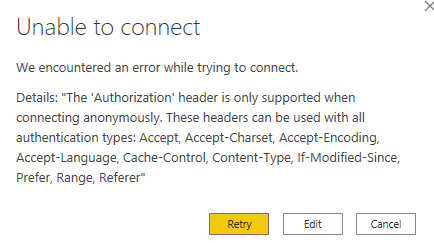
The first thing was I ran into the following error:


Turns out it had to do with me connecting to the REST API in an earlier session, but with Windows authentication. 


So after clearing the permissions I could login fine after selecting Anonymous:


Exceeded Amount of Allowed Requests

Probably because I was not as fast as Parker creating the report, I ran into the following problem :-)


Power BI Desktop wil NOT return an error message, instead it will just keep spinning.. The Try It button on the REST API Documentation site will however return a 429 Response code, saying you have exceeded the amount of allowed requests, and I have to wait (approximately 😀) 1256 seconds.


Refreshable Access Token

In Part 2: Obtaining a Refreshable Access Token Parker explains how to get past the point of entering your Bearer token everytime it expires :-)


Limit The Number of API Calls

Another important point was made by Marc Lelijveld ( b | @MarcLelijveld), he suggests to use the $expand parameter of the GetGroupsAsAdmin function. That way you don't have to query the API every time per dataset/dataflow/etc.


You can check a few examples of the use of $expand at the documentation of the Admin- Groups GetGroupsAsAdmin page.


Recap

I hope reading this will help you in better setting up management of your Power BI environment.


Tuesday, June 9, 2020

TSQL Tuesday #127 – Non SQL Tips and tricks

In case you haven't seen T-SQL Tuesday, this is a blog party created by Adam Machanic (b | @AdamMachanic) and now maintained by Steve Jones (b | @way0utwest). Each month someone hosts the party and comes up with a subject for all of us to blog about. Then anyone who is interested gets to blog on this same subject. The host also puts all the post for the month in a recap post.

This month our host is Kenneth Fisqher (the q is silent) (b | @sqlstudent144) and he’d like us to talk about non SQL tips and tricks.


Windows

Task View

I love using Task View, mostly during presentations, but also sometimes during my work when I'm developing.

You can start using Task View by clicking the button somewhere near the Start button. Depending on your settings, the search bar could also be there, or Task View might not be visible at all.


In the latter case, right-click anywhere on the task bar (not on an application) and check Show Task View button.


When you then press the button on the task bar (or WIN + TAB) the Task View opens, where you can add new or delete current Desktops. You can also drag applications from their current Desktop to another one.


As I mentioned I always use this when I'm presenting. I have my regular stuff from work still open in Destkop 1, everything I need for my demo's in Desktop 2 and my presentation in Desktop 3.

This way I can easily switch from my presentation (in presentation mode) to my demo's in Desktop 2 and back to my current slide in the presentation. All without the need to escape out of the presentation (or ALT+TAB and search for the right window) and without the need to start the presentation again after my demo. It's all just waiting there in presentation mode for me to come back! :-) 

If you are also into shortcuts, here are a few, of which the 3rd (switch the desktop) is the most important in my presentations:
  • Task view: WIN + TAB – New Task view opens up and stays open.
  • Create new virtual desktop: WIN + CTRL + D
  • Switch virtual desktop: WIN + CTRL + LEFT or RIGHT
  • Close current virtual desktop: WIN + CTRL + F4

ALT+TAB variant

Ok, I'll be honest, I use ALT+TAB very often. But it turns out there's also an alternative (and more) to that.

  • WIN + [1-9]
  • WIN + SHIFT + [1-9]

WIN + [1-9] switches between applications on the taskbar.

That can mean 2, or actually 3 things:

  • if one or more instances of the application are already open, it will immediately switch to that (first instance of the) app
    • if multiple instance are open, by holding WIN and pressing [1-9] again, it will cycle through the open instances (as long as you hold WIN). On release of WIN it will switch to that (then active) instance. Pressing SHIFT + [1-9] cycles through the open instances in reverse order.
  • if no instance is open yet, it will open an instance of that app
  • if that app is the current active instance, it will be minimized (unless it's a multi-instance app, then it will do nothing :-))
WIN + SHIFT + [1-9] opens a new instance, regardless of now many instances are already open.

Teams

In the current times I'm am using Teams more and more, so I thought I'd also add a few of my favorite shortcuts here:

  • CTRL + Period (.): Bring up all the keyboard shortcuts
  • CTRL + Equals sign (=): Zoom in (for example in a meeting where content is shared)
  • CTRL + Minus sign (-): Zoom out
  • CTRL + [1-6]: Open up the corresponding tab on the left side
  • CTRL + SHIFT + M: Toggle mute in a meeting
  • CTRL + SHIFT + O : Toggle video in a meeting
  • Up arrow: not a shortcut per se, but very handy: if you just typed a message in a chat and press the up arrow afterwards you immediately go to edit mode of that message.
Have a look at all the keyboard shortcuts for Microsoft Teams here, for example also when you're in the Web app instead of the Desktop app.


Featured Post

Power Apps or Translytical Task Flows?

I think I have gotten this question at least five or six times in the last few months, and with Translytical Task Flows reaching GA in the M...